


Key Takeaways:
Save to ClickUp offers a faster, more streamlined experience than ClickUp's official Chrome extension
The extension captures full webpage content with formatting and images
Perfect integration with GTD workflow and reference management
Free tool with planned features including task creation and time tracking
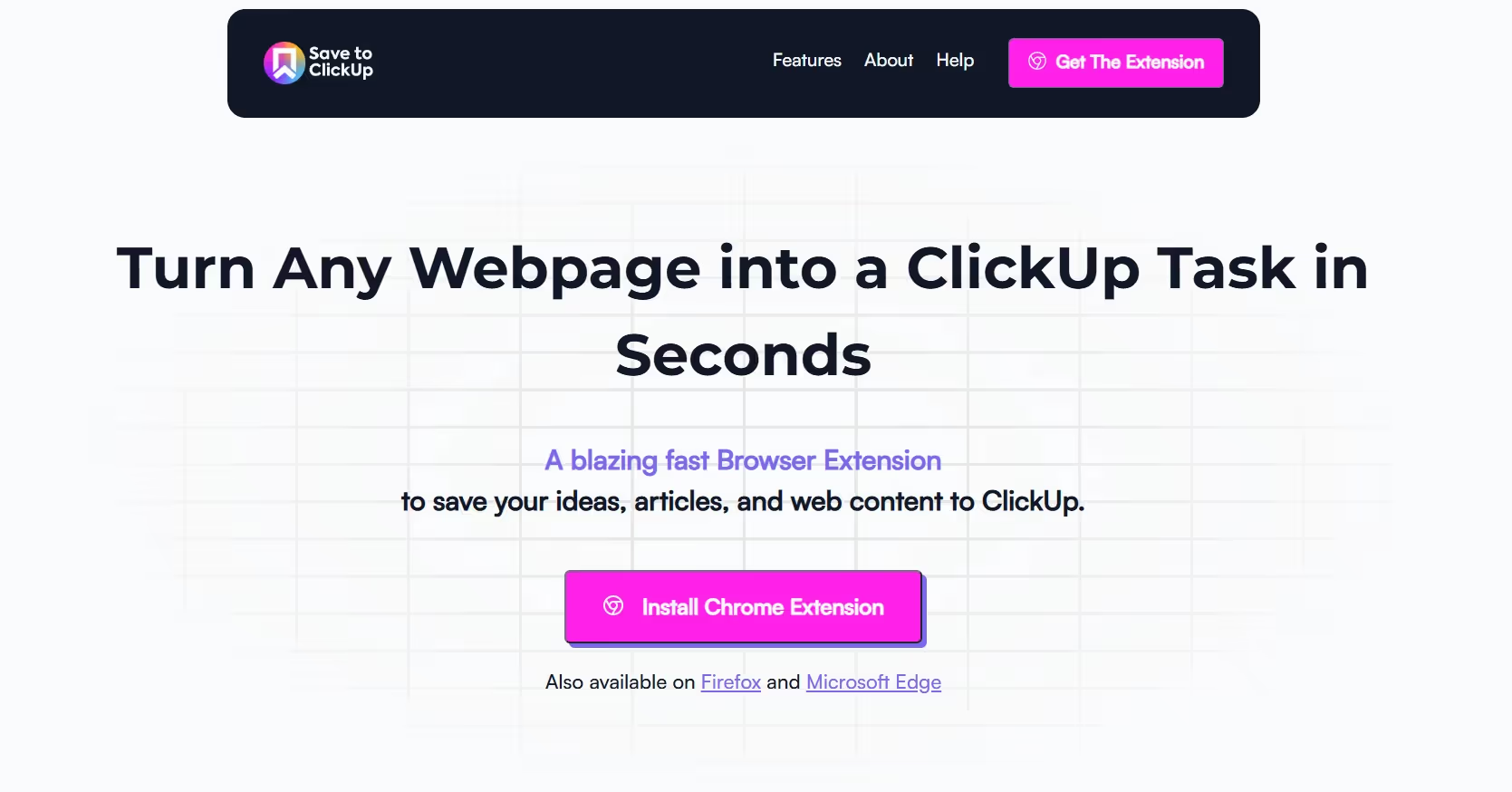
The Challenge with ClickUp's Native Extension
Does ClickUp's Chrome extension need an upgrade? Here's a faster alternative for capturing web content and managing tasks.
The official ClickUp Chrome extension, while functional, has shown its age. Users frequently report slow loading times and clunky content capture processes. This creates friction in what should be a smooth task management workflow.
Introducing Save to ClickUp
A Streamlined Alternative
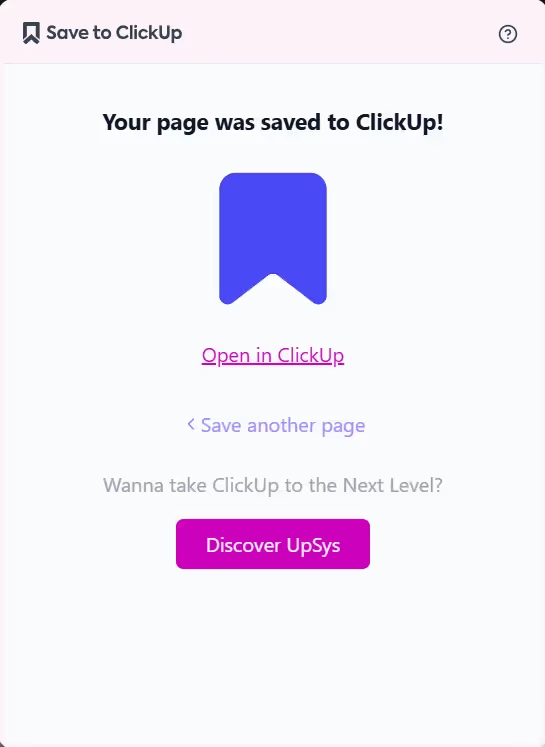
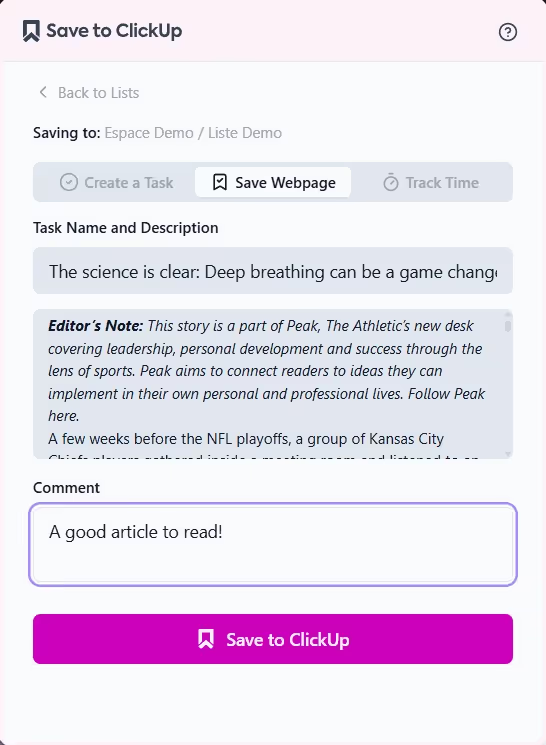
Save to ClickUp emerged from a simple observation: content capture should be fast and friction-free. This new Chrome extension delivers exactly that, offering:
Instant page loading
One-click list selection
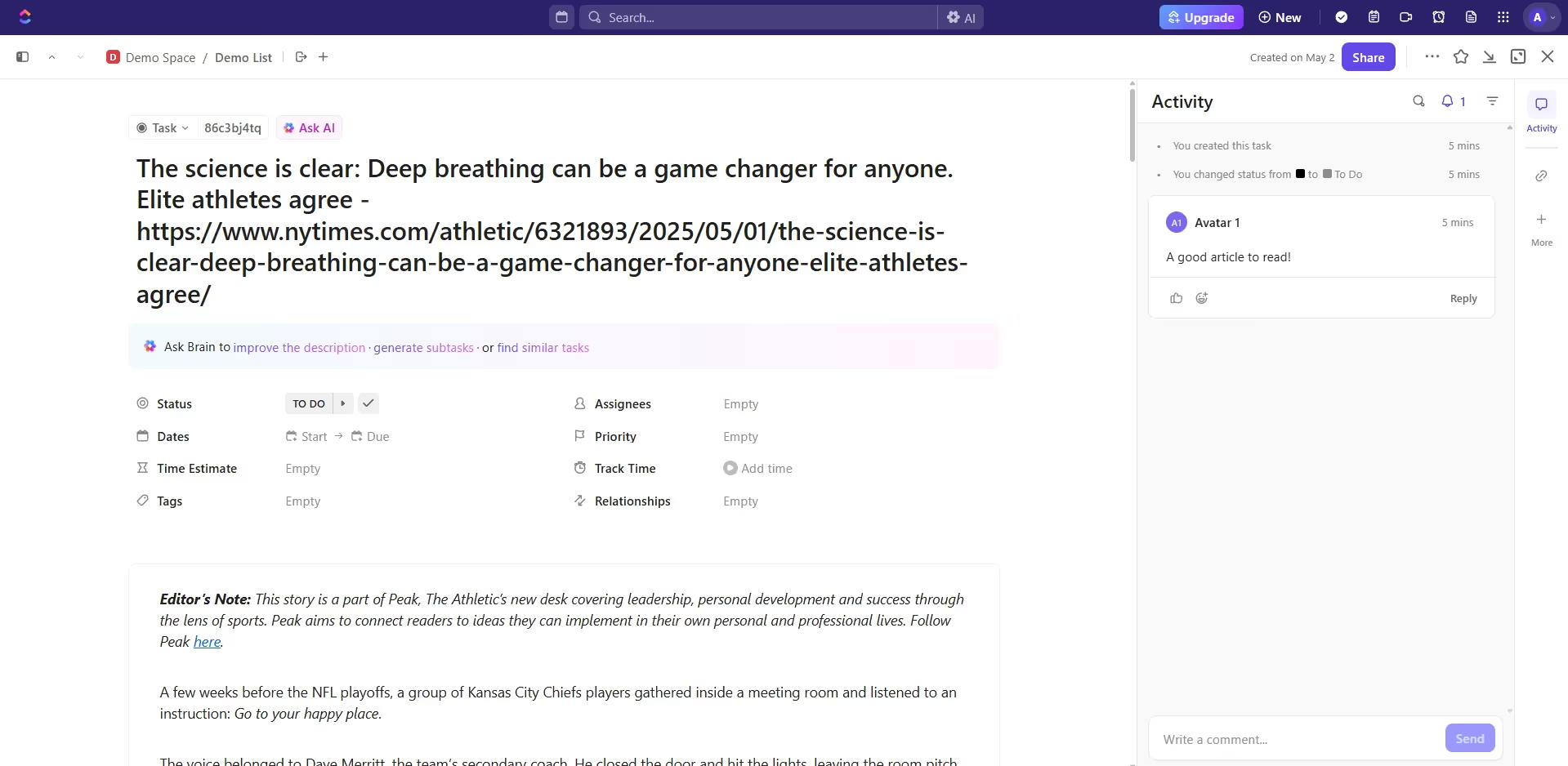
Complete webpage capture with formatting
Built-in comment functionality
Direct task opening
We also made a quick demo tour on YouTube. Feel free to watch if you want to learn how to use Save to ClickUp and discover all its features.
Feature Comparison
When compared to ClickUp's native extension, Save to ClickUp shines in several areas:
Native Extension:
Slower loading times
Multiple clicks for workspace navigation
Basic screenshot functionality
Limited content capture
Save to ClickUp:
Instant loading
Streamlined workspace selection
Full page content capture
Preserved formatting and images
Integrated commenting system
Task creation
Time tracking
Practical Applications
GTD Workflow Integration
The extension pairs perfectly with Getting Things Done (GTD) methodology. Users can:
Capture reference materials instantly
Add context through comments
Set reminders for follow-up
Categorize content using custom statuses
Read-Later Functionality
Save to ClickUp doubles as a read-later app by:
Preserving complete articles
Maintaining original formatting
Making content accessible across devices
Supporting offline reading
New Features breakdown
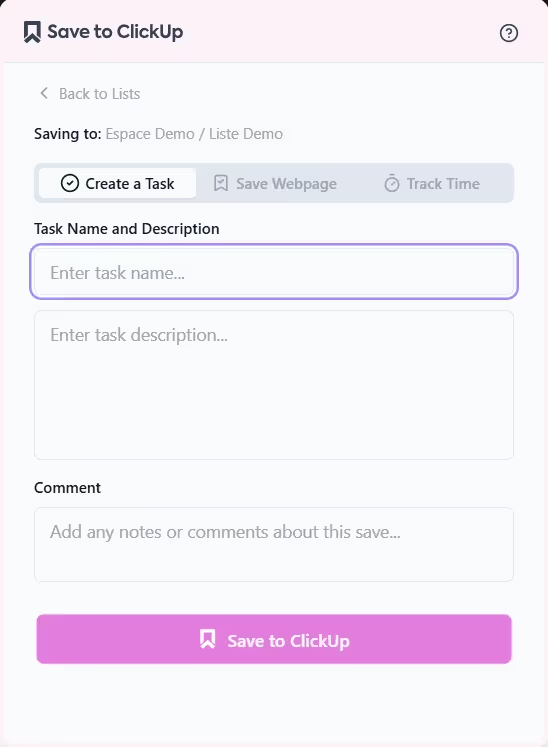
Smart Task Creation
The new task creation feature brings new capabilities:
Quick capture of tasks from any webpage
Auto-population of task details from selected content
Custom fields support
Rapid workspace and list selection
Bulk task creation from selected items
Intelligent Time Tracking
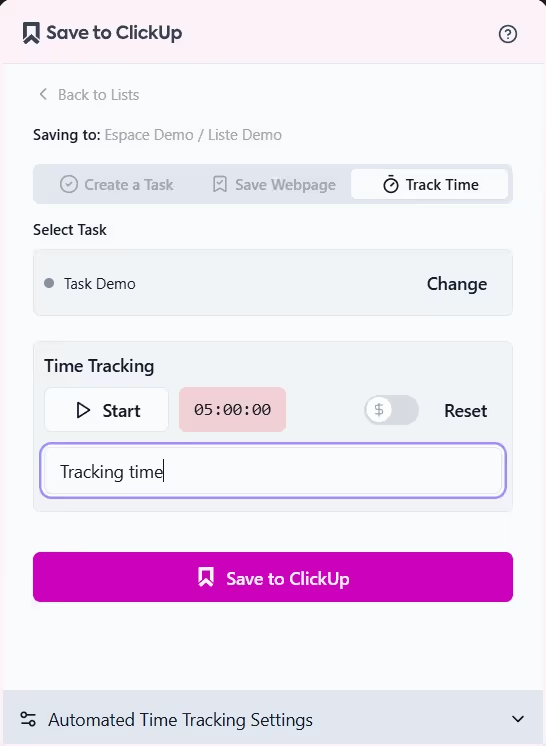
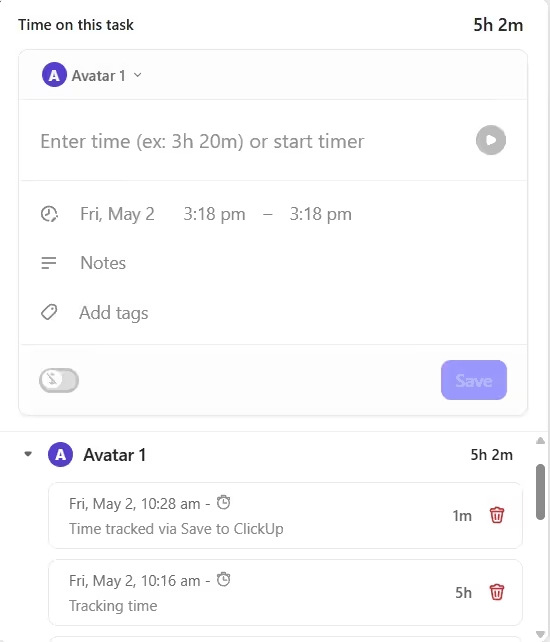
Save to ClickUp will change time management with automated time controls
Start tracking when opening tasks
Stop tracking when closing tasks
Resume previous sessions
One-click manual controls
Future development
ClickUp Inbox Integration
Auto-start timing for inbox processing
Track time spent on email responses
Monitor inbox processing speed
Set daily inbox time limits
Analytics and Reporting
Daily/weekly time summaries
Task-specific time analysis
Project time distribution
Performance trends
These features aim to reduce friction in task management while providing valuable productivity insights.
Community Input
The developer actively seeks user feedback to shape future updates, maintaining a commitment to keeping core features free while considering premium additions based on user demand.
Getting Started
Visit the Chrome Web Store
Search for "Save to ClickUp"
Click "Add to Chrome"
Connect your ClickUp workspace
Start capturing content with a single click
How Save to ClickUp Compares to Other Chrome Extensions
There are several Chrome extensions that interact with ClickUp, but they serve different purposes. Here is how Save to ClickUp stacks up against the alternatives.
ClickUp's Official Browser Extension
ClickUp offers its own browser extension that lets you create tasks, track time, and take screenshots. It is a general-purpose tool designed around ClickUp's full feature set. However, it can feel heavy for a simple use case: saving a webpage or a note quickly. The official extension requires multiple clicks and form fields before you can create a task.
Save to ClickUp, by contrast, is purpose-built for one thing: capturing content from the web and sending it to ClickUp as fast as possible. Fewer fields, fewer clicks, faster results.
Web Clipper Extensions (Notion, Evernote)
Tools like Notion Web Clipper or Evernote Web Clipper are great for saving web content, but they don't connect to ClickUp at all. If your team runs on ClickUp, you would need to manually copy content from these tools into your tasks — an extra step that adds friction and breaks your workflow.
Zapier / Make Browser Extensions
Automation platforms like Zapier and Make offer browser extensions that can push data to ClickUp. These are powerful but require setting up automations (Zaps or Scenarios) before they work. For a quick "save this page to ClickUp" action, they are overkill. Save to ClickUp gives you that direct connection without any automation setup.
Bottom line: if your primary need is quickly saving web pages, articles, emails, or notes into ClickUp tasks, Save to ClickUp is the most focused and fastest option available.
Getting Started: Step-by-Step Setup
Setting up Save to ClickUp takes less than two minutes. Here is the full walkthrough:
Install the extension — Visit the Chrome Web Store and search for "Save to ClickUp" or use the direct link from our website. Click "Add to Chrome" and confirm the permissions.
Pin it to your toolbar — After installation, click the puzzle piece icon in Chrome's toolbar and pin Save to ClickUp. This keeps it one click away at all times.
Connect your ClickUp account — Click the extension icon and sign in with your ClickUp credentials. The extension uses OAuth, so your password is never stored locally.
Choose your default workspace and list — In the extension settings, pick the ClickUp workspace and list where new tasks should land by default. You can always change this per task, but setting a default saves time.
Save your first task — Navigate to any webpage, click the extension icon, add a note if you want, and hit Save. The page title and URL are captured automatically.
That's it. From this point, every page you visit is one click away from becoming a ClickUp task. The extension remembers your last-used list, so repeat saves are even faster.
Tips for Power Users
Keyboard shortcut: Set a custom keyboard shortcut in Chrome's extension settings (chrome://extensions/shortcuts) to open Save to ClickUp without touching your mouse.
Highlight before saving: Select text on the page before clicking the extension. The selected text will be included in the task description, giving your team instant context.
Use tags: Add ClickUp tags when saving to keep your tasks organized. Tags like "research", "competitor", or "inspiration" help you filter saved items later.
Frequently Asked Questions
Does Save to ClickUp work with other browsers?
Save to ClickUp is built for Google Chrome and Chromium-based browsers like Brave, Arc, and Microsoft Edge. It is not available for Firefox or Safari at this time.
Can I save tasks to different ClickUp lists?
Yes. While you set a default list during setup, you can change the target workspace, space, folder, and list on every save. The extension remembers your most recent selection, so switching between a few lists is quick.
Is the extension free?
Save to ClickUp is free to install and use. It works with all ClickUp plans, including the Free Forever plan. There are no premium tiers or hidden fees.
Does it capture page content or just the URL?
By default, the extension captures the page title and URL. If you select text on the page before saving, that text is included in the task description. It does not clone the full page HTML — it focuses on what matters for creating an actionable task.
Related Resources
If you are getting started with ClickUp or want to get more out of it, these articles will help:
Getting Started with ClickUp — A complete walkthrough for new ClickUp users. Covers workspace setup, navigation, and your first project.
5 Costly ClickUp Mistakes — Common pitfalls that waste time and how to avoid them. Essential reading before you build out your workspace.
ClickUp Hierarchy Explained — Understanding Spaces, Folders, and Lists is key to organizing your saved tasks effectively.
Ready to Transform Your ClickUp Workspace?
Get expert guidance to unlock your team's potential with ClickUp.
Book a free consultation and discover how we can simplify your workflows, boost productivity, and eliminate chaos from your business operations.